
Authentication
Create an app and get your API key to authenticate with the Makeswift REST API.
To use the Makeswift REST API, you’ll need to create an app and obtain an API key. This guide walks you through the setup process.
While both API Key and Bearer Token authentication methods are supported, you must use only one authentication method per request. Requests that include both an API Key and Bearer Token will be rejected.
Create an app
To create your first app:
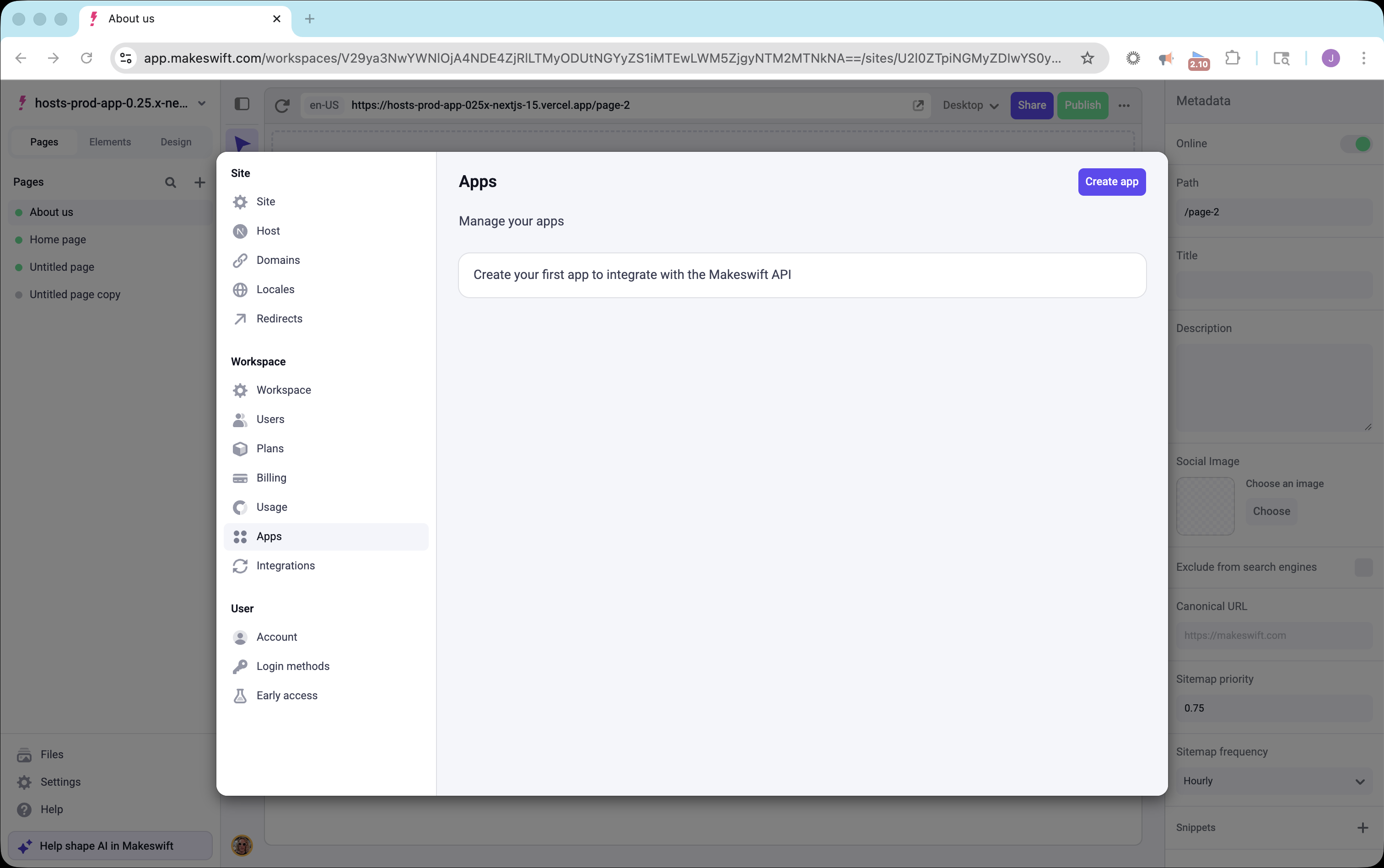
- Open Settings in the Makeswift builder
- Navigate to Workspace → Apps
- Click Create app
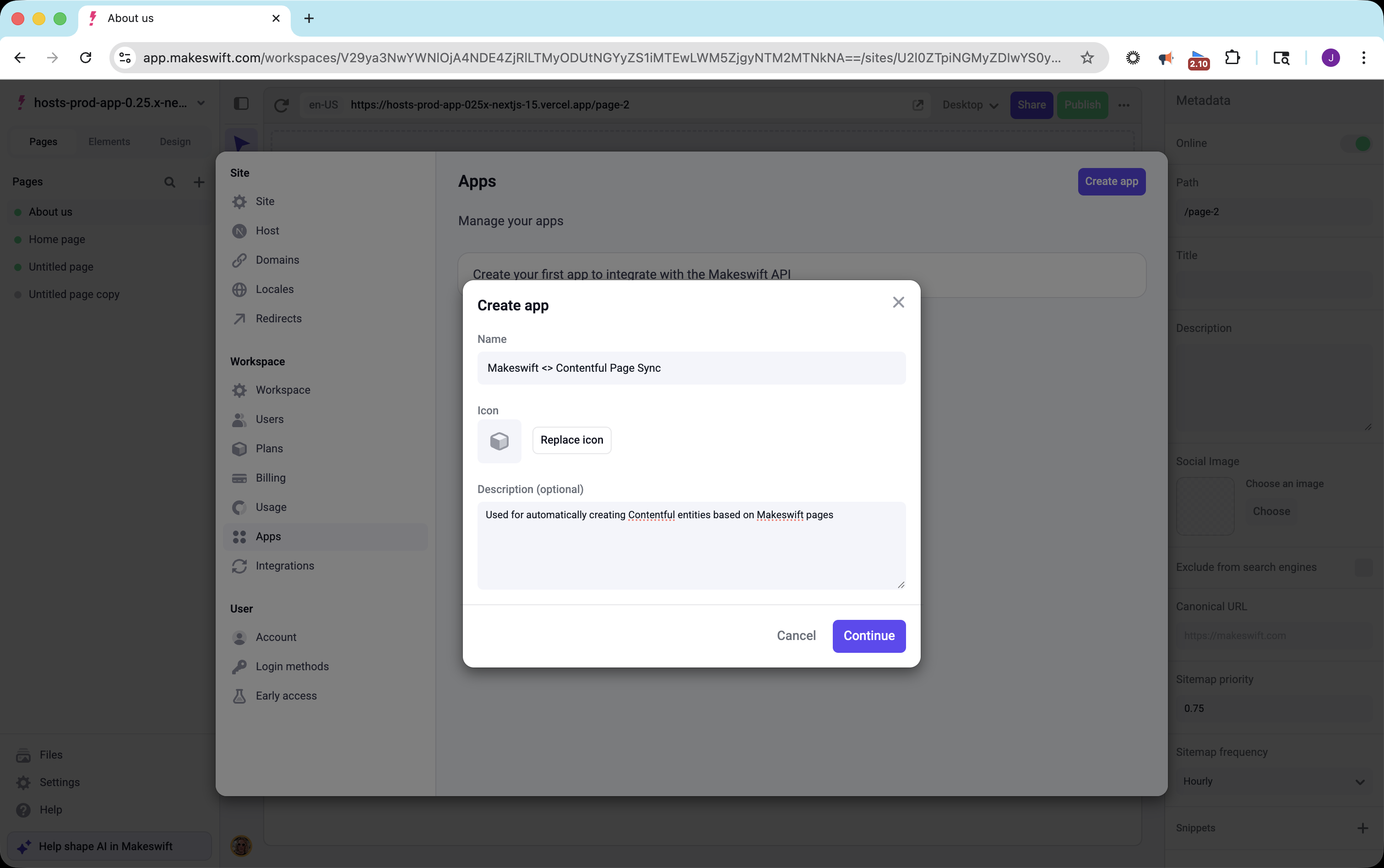
- Enter a Name for your app
- Optionally, choose an Icon and add a Description
- Click Continue
Copy your API key
After creating your app, you’ll be shown your API key. This is the only time the key will be displayed.
Save your API key immediately. It won’t be shown again after you close the dialog. If you lose it, you’ll need to create a new app.
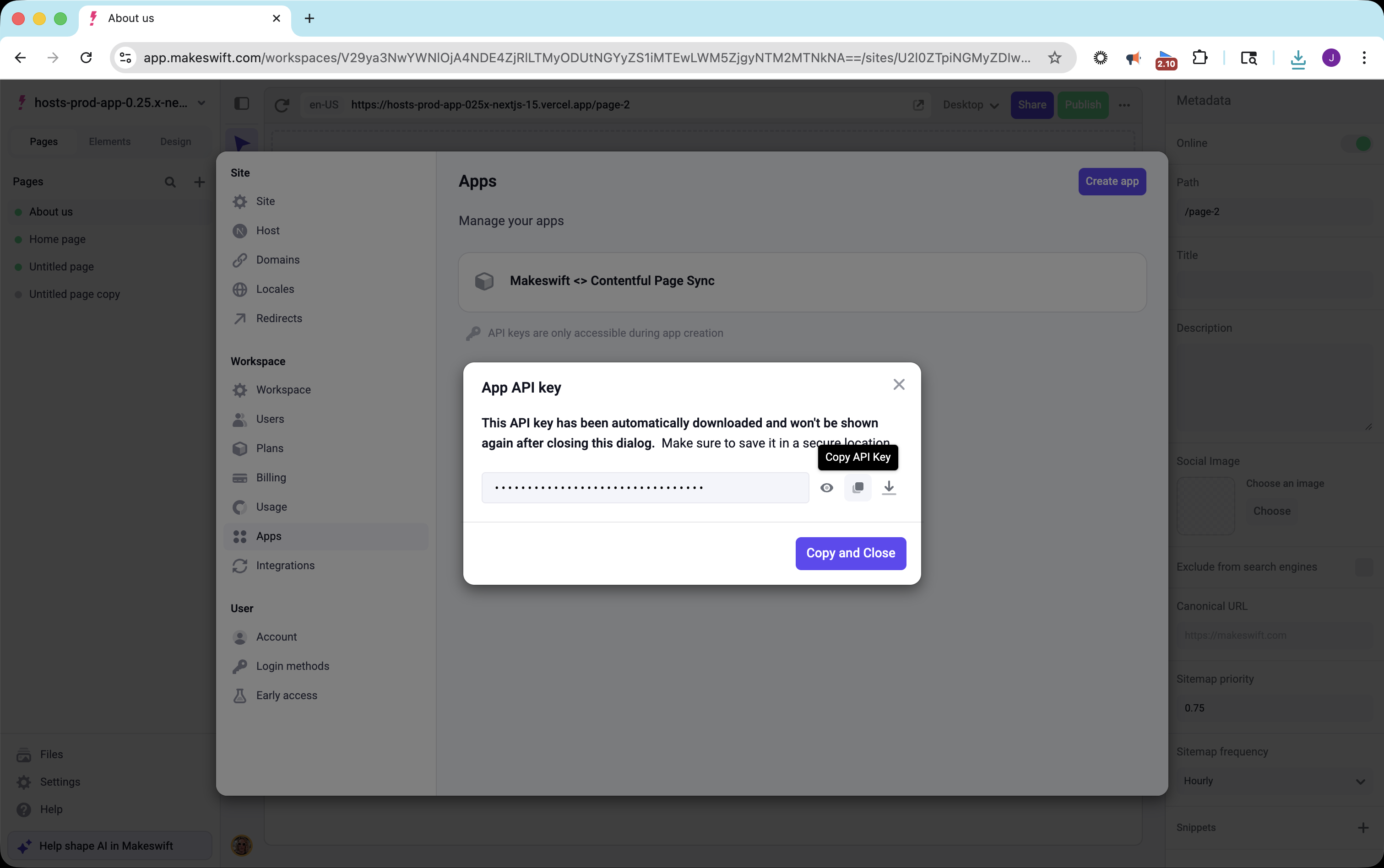
- Click the Copy button or Copy and Close to copy the API key
- Store the key securely (e.g., in environment variables or a secrets manager)
Get your Site ID
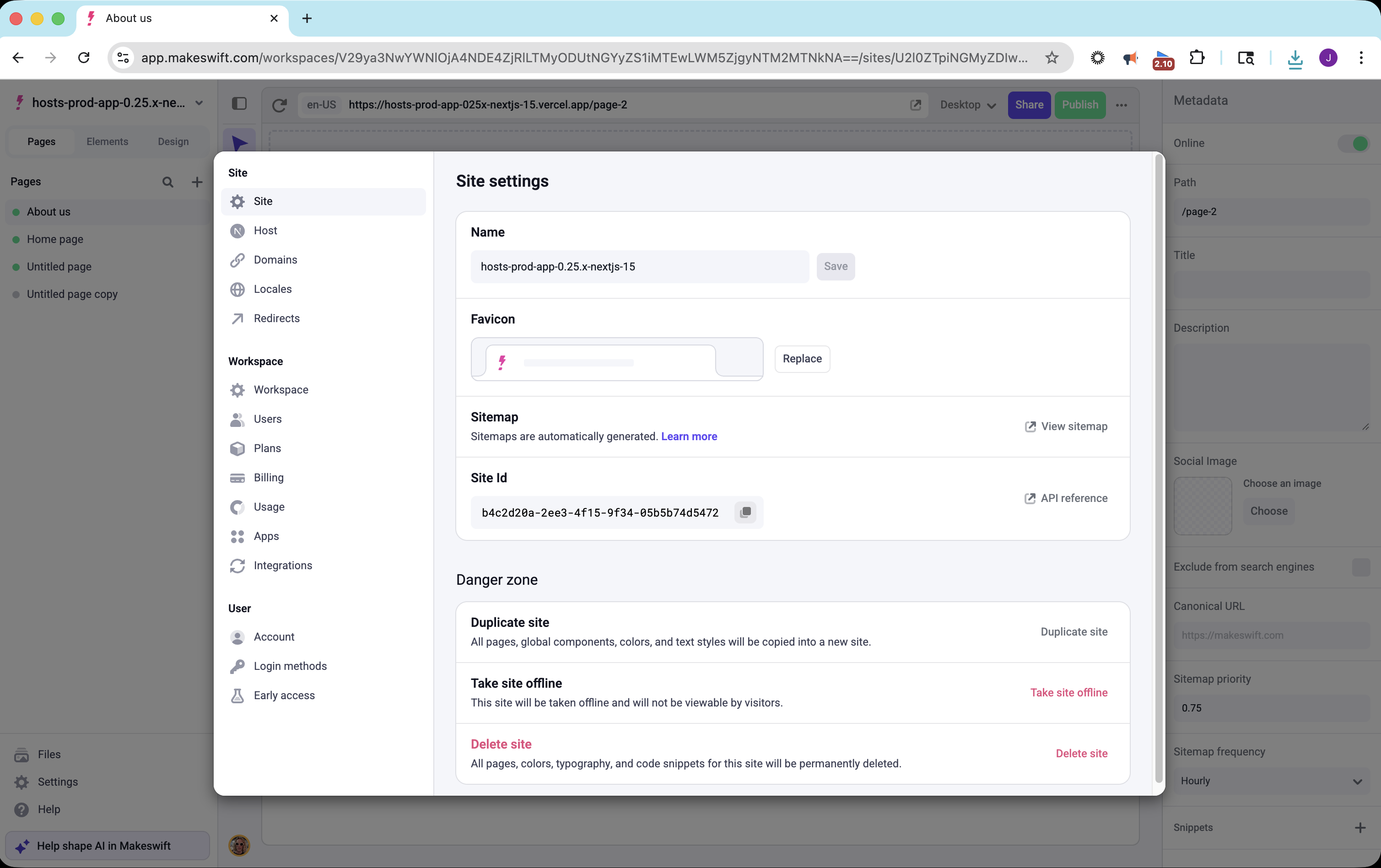
Many API endpoints require a Site ID. To find it:
- Open Settings in the Makeswift builder
- Navigate to Site → Site
- Copy the Site Id value
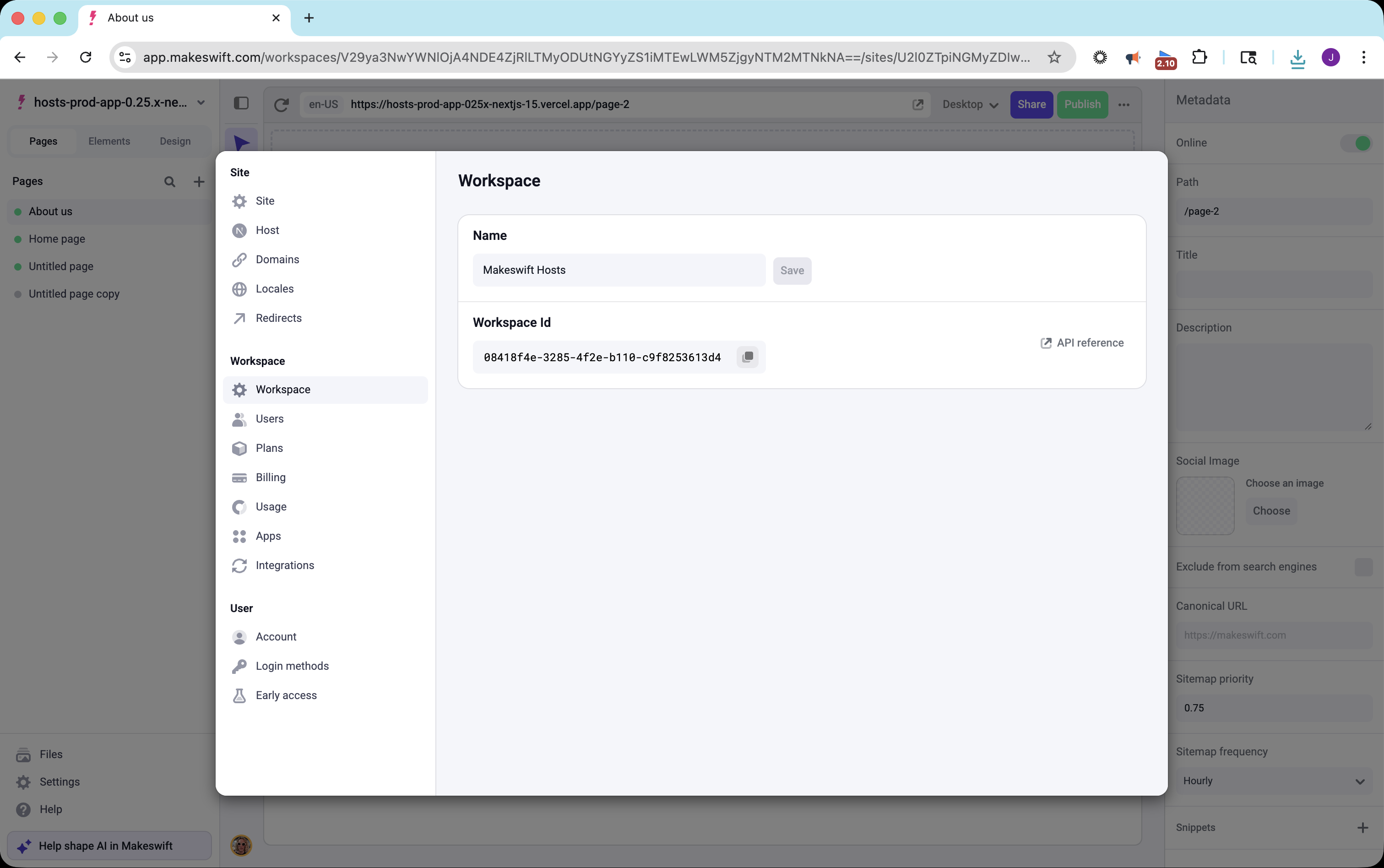
Get your Workspace ID
Some API endpoints operate at the workspace level and require a Workspace ID:
- Open Settings in the Makeswift builder
- Navigate to Workspace → Workspace
- Copy the Workspace Id value
Using your API key
Include your API key in the x-api-key header with every request:
Keep your API key secure and never expose it in client-side code. Use environment variables to store your key in your application.
Next steps
Now that you have your API key, you can start making requests to the API: