For AI agents: a documentation index is available at the root level at /llms.txt and /llms-full.txt. Append /llms.txt to any URL for a page-level index, or .md for the markdown version of any page.
Sign in
DocsAPI ReferenceChangelog
  • Get started
    • Quickstart
    • Concepts
  • Guides
    • Environments
  • Reference
        • Checkbox
        • Code
        • Color
        • Combobox
        • Group
        • Image
        • Font
        • Link
        • List
        • Number
        • Rich Text
        • Select
        • Slot
        • Style
        • Text Area
        • Text Input
      • Makeswift API Handler
    • Product docs
    • Blog
    • Support
Sign in
LogoLogo
On this page
  • Params
  • Prop type
  • Example
  • Using Image.Format.URL
  • Using Image.Format.WithDimensions
Reference@makeswift/runtimeControls

Image

Was this page helpful?
Previous

Group

Next

Font

Built with

Adds an Image panel in the Makeswift builder to visually edit an image prop.
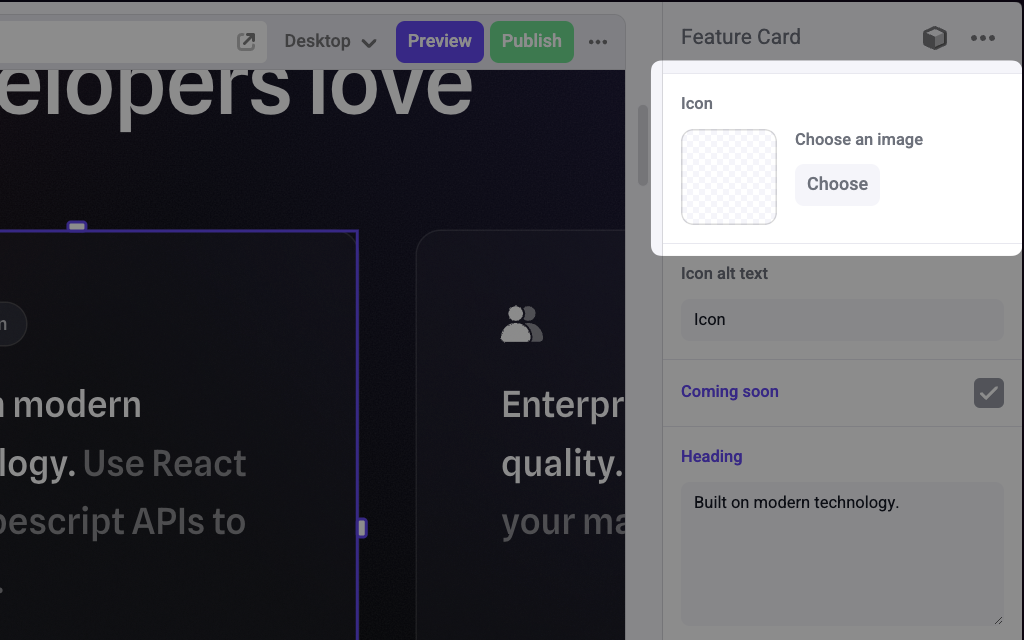
An image panel on a feature card component to pick an icon

Clicking “Choose” opens the Makeswift files manager, where you can upload an image or select an existing one from your media library.
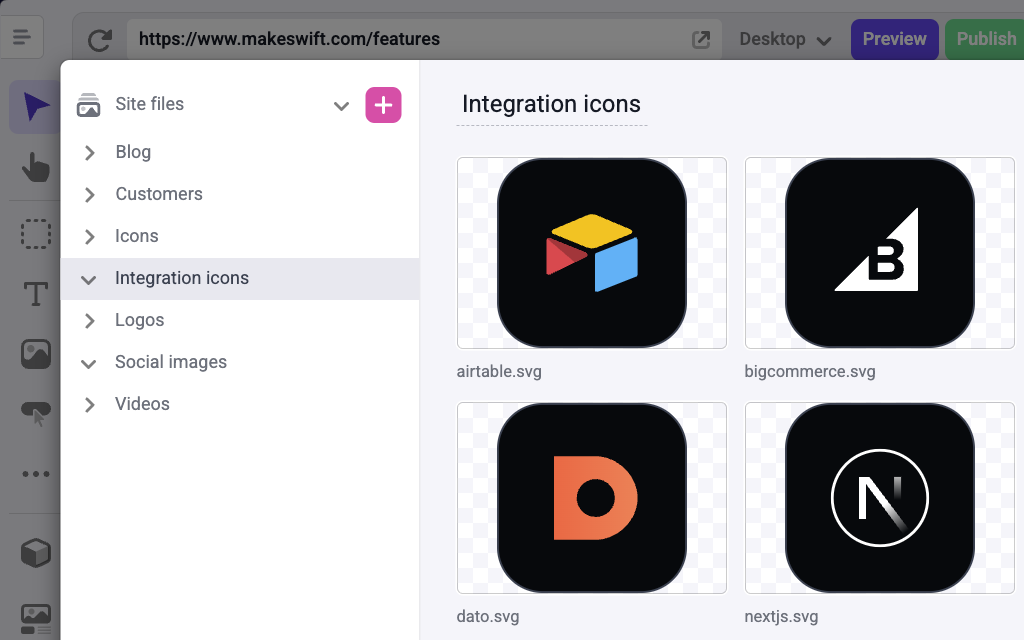
The Makeswift files manager

Params

label
stringDefaults to Image

Text for the panel label in the Makeswift builder.

description
string

The description shown in the Panel of the Makeswift builder. This can be written in Markdown format. Added in v0.24.8.

format
Image.Format.URL | Image.Format.WithDimensionsDefaults to Image.Format.URL

Changes the prop type this component receives. If set to Image.Format.URL, your component receives a string value of the image url. If set to Image.Format.WithDimensions, your component receives an object of type ImageWithDimensions. This format is useful when using components like next/image that require you to pass the image dimensions as props.

1type ImageWithDimensions = {
2 url: string;
3 dimensions: {
4 width: number;
5 height: number;
6 };
7};

Prop type

If format is set to Image.Format.URL, the prop type is string.

If format is set to Image.Format.WithDimensions, the prop type is ImageWithDimensions.

Example

The following examples adds an Image control to the icon prop of a Feature Card component.

Using Image.Format.URL

1import { Image } from "@makeswift/runtime/controls";
2
3import { runtime } from "../../../../../makeswift/runtime";
4
5import { FeatureCard } from "./FeatureCard";
6
7runtime.registerComponent(FeatureCard, {
8 type: "feature-card",
9 label: "Feature Card",
10 props: {
11 icon: ImageControl({
12 label: "icon",
13 format: Image.Format.URL,
14 }),
15 },
16});

Using Image.Format.WithDimensions

1import { Image } from "@makeswift/runtime/controls";
2import { runtime } from "../../../../../lib/makeswift/runtime";
3
4import { FeatureCard } from "./FeatureCard";
5
6runtime.registerComponent(FeatureCard, {
7 type: "feature-card",
8 label: "FeatureCard",
9 props: {
10 icon: Image({
11 label: "icon",
12 format: Image.Format.WithDimensions,
13 }),
14 },
15});

.makeswift.ts is a naming convention for organizing Makeswift registration code. Learn more.