
Paths
A path, or pathname is a string that identifies the location of a file or directory on a web server. It is part of the URL, after the domain, that specifies where an asset or page can be found such as /about or /features.
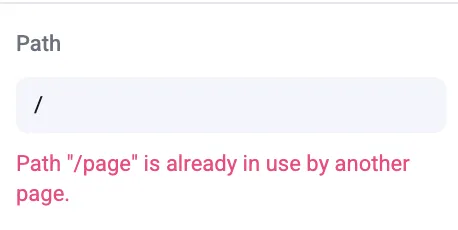
In Makeswift, pathnames serve as unique identifiers for each page. You cannot use the same pathname for two separate pages. Makeswift will display an error if you attempt to name two pages with the same path.
By default, when you create a new page, the pathname will be /page-x with x being the number of new page such as /page-2 or /page-4.
When you duplicate a page it will copy the path name and add a suffix of -copy like /contact-copy.
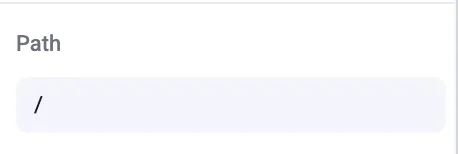
For your homepage, you will likely not have a pathname. This is signified by a single trailing slash “/” in the path field.
Localization
When utilizing the localization feature, you may translate or alter path names within each locale as if they are separate pages. By default, each locale will inherit the path name of the base locale.
Pro tips
When using the “Open page” option for links, the pathname will be automatically filled in for you behind the scenes. After editing the URL of a linked page, Makeswift will maintain the correct pathname across all pages where that page is linked.
Developer notes
When using a custom host, we suggest using the <Link> in your Next.js app for links. <Link> enables client-side navigation, which makes page transitions faster and smoother by avoiding full page reloads. Additionally, it helps with prefetching linked pages, improving the overall performance and user experience by loading the necessary data before the user even navigates to the page.