For AI agents: a documentation index is available at the root level at /llms.txt and /llms-full.txt. Append /llms.txt to any URL for a page-level index, or .md for the markdown version of any page.
Sign in
DocsChangelog
DocsChangelog
  • Getting started
    • Introduction
  • The Visual Builder
    • Builder basics
    • Pages
    • Layouts
    • Elements
    • Components
    • Theming
    • Files
    • Responsive design
  • Guides
    • Previewing and sharing
    • Publishing
    • SEO
  • Settings
      • Settings
      • Colors
      • Text styles
      • Hosting
      • Domains
      • Snippets
      • Redirects
      • Sitemaps
    • Developer docs
    • Blog
    • Support
Sign in
LogoLogo
On this page
  • Adding colors
  • Managing colors
  • Developer notes
SettingsSite

Colors

Was this page helpful?
Previous

Site

Next

Text styles

Built with

Colors allow you to define a color palette for your website. Colors are shared across all pages in a site ensuring a visually cohesive design throughout your site.
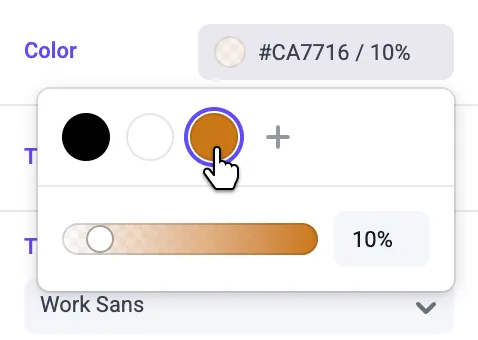
Picking a color

Adding colors

Add a color by clicking the “+” inside the color picker, or in the Site tab of the panels sidebar.
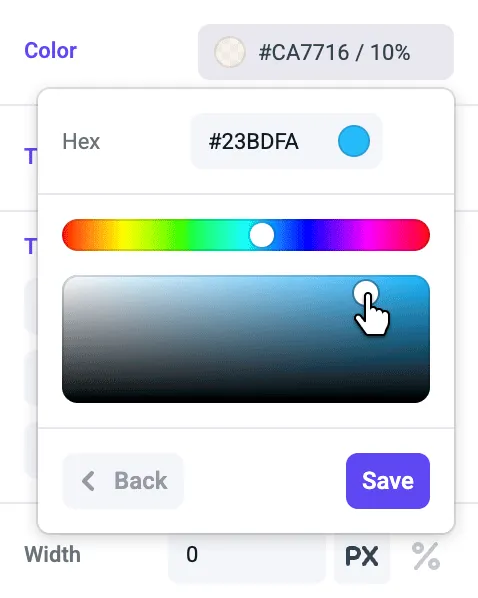
Configuring a color

Enter a hex value value, or use the sliders to add a color and click “Save”. This color can now be applied to elements and text on your pages.

Managing colors

To manage colors, deselect all elements and navigate to the “Site” tab in the right sidebar. Click on an existing color to edit or delete the color from your site.

Color updates are published as separate resources from pages. Learn more about publishing colors.
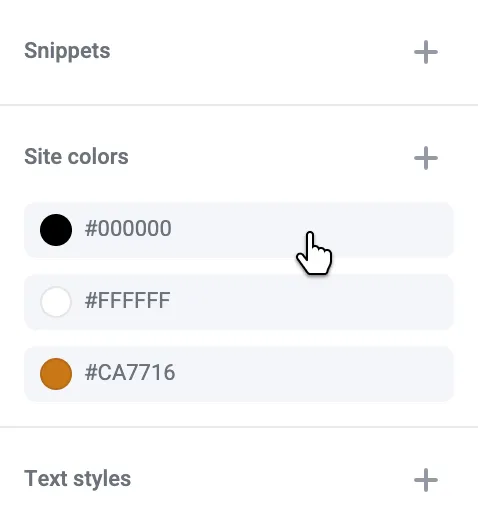
Managing site colors

Developer notes

When creating components you can add a custom panel using the color control to allow your team to select from your site colors.