
AI Translations
Use AI to automatically translate your site content into one or more locales.
AI Translations is currently a beta feature only available on paid plans. You’ll need to opt-in to enable it for your account under Settings > Early access.
AI Translations lets you generate translations for pages and components across your Makeswift site without leaving the builder. You can define custom instructions to guide the AI—such as terms to leave untranslated—and then select exactly which content and locales to translate.
AI translations overwrite existing content in the chosen locales and cannot be automatically undone. Review translations carefully before publishing.
Add AI translation instructions
Before requesting a translation, you can define global instructions that apply every time the AI translates your content. For example, you might tell the AI not to translate brand names or product-specific terms.
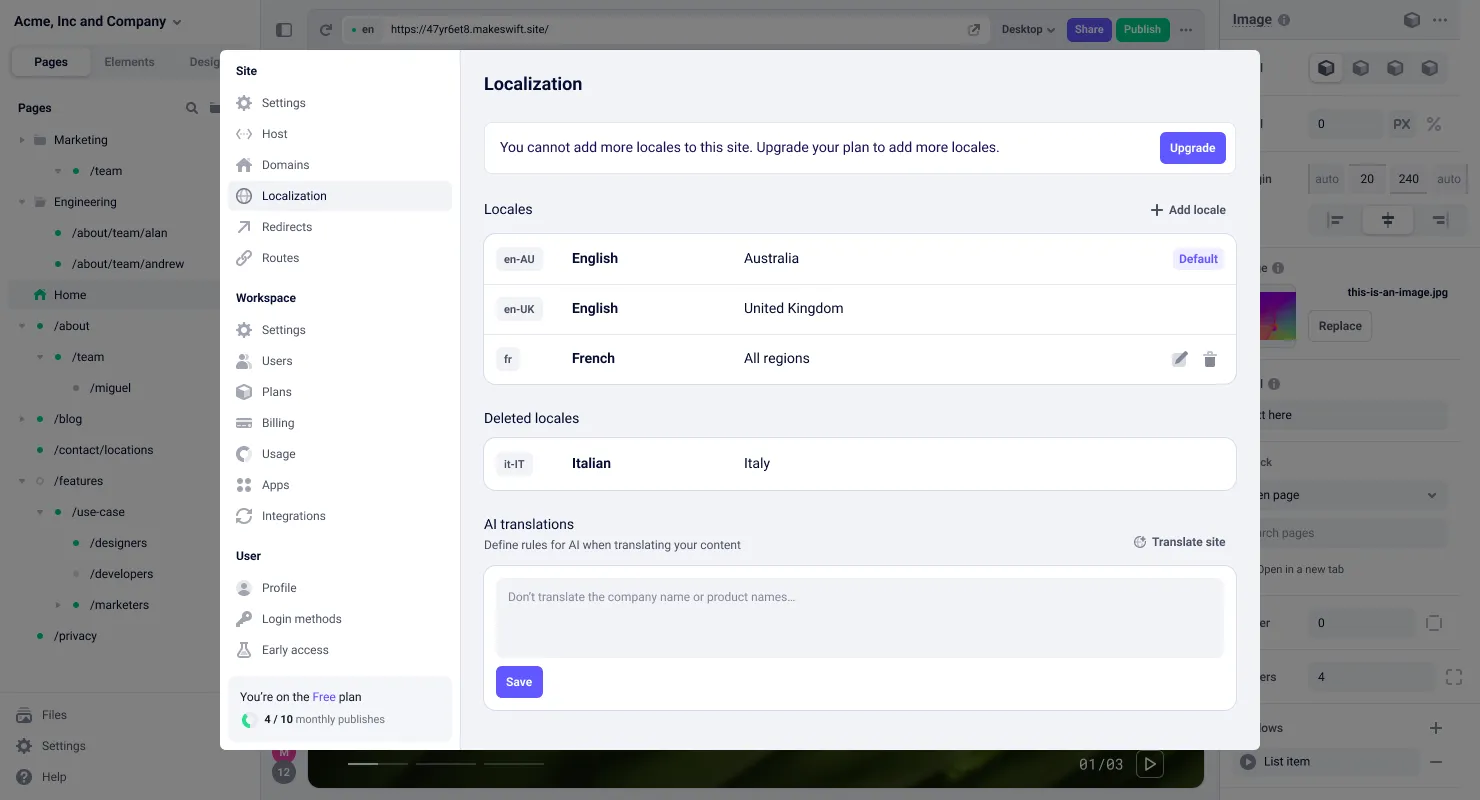
Request a translation
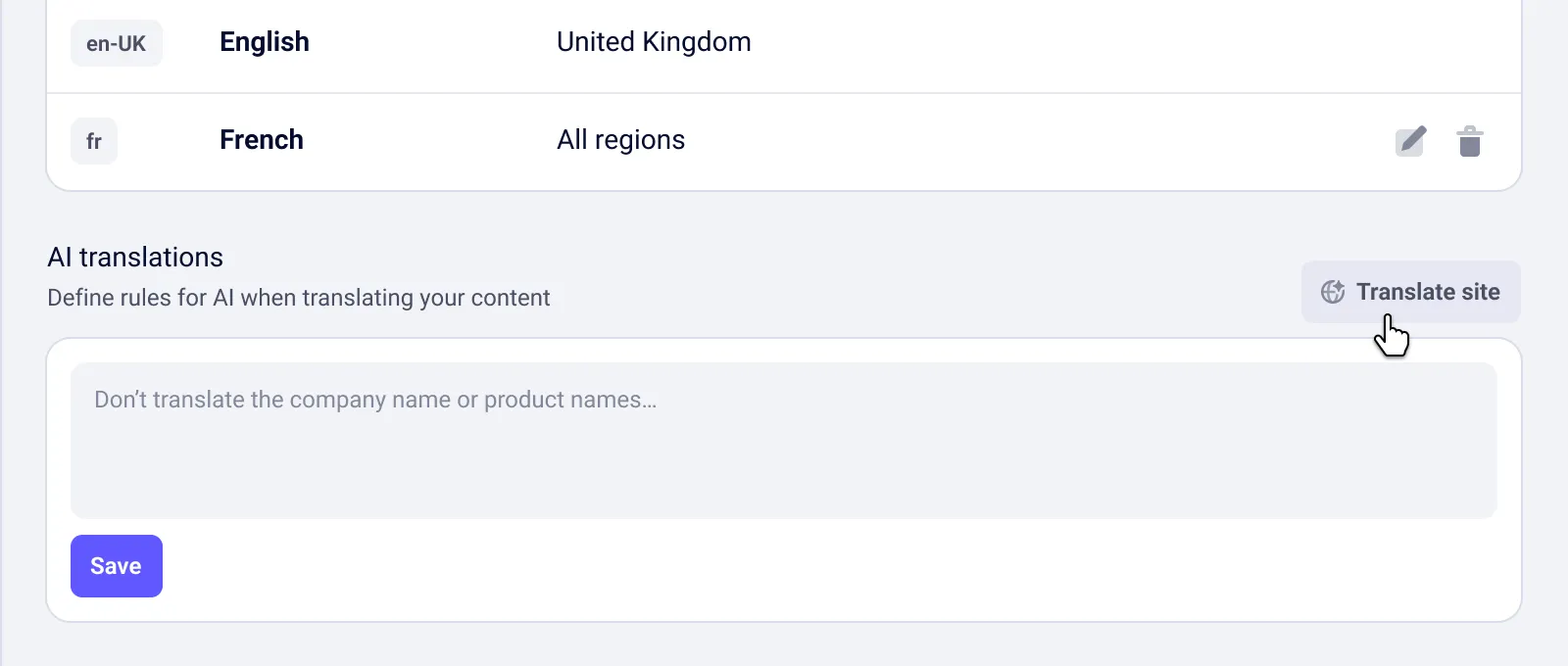
Open the translation dialog
You can access the translation dialog from the Localization settings panel by clicking Translate site.
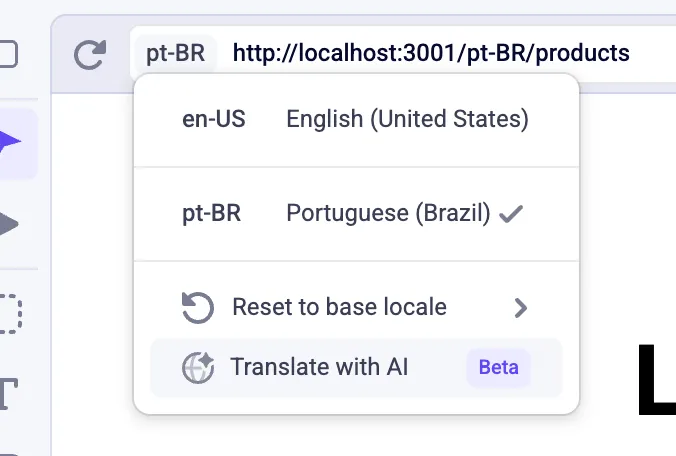
Or from the locale menu when a locale is selected.
Select locales and content
The translation dialog opens on the Site tab. Choose which locales to translate into using the checkboxes on the left. On the right, select the components and pages whose content you want to translate. You can search and sort translatable documents (pages and components).
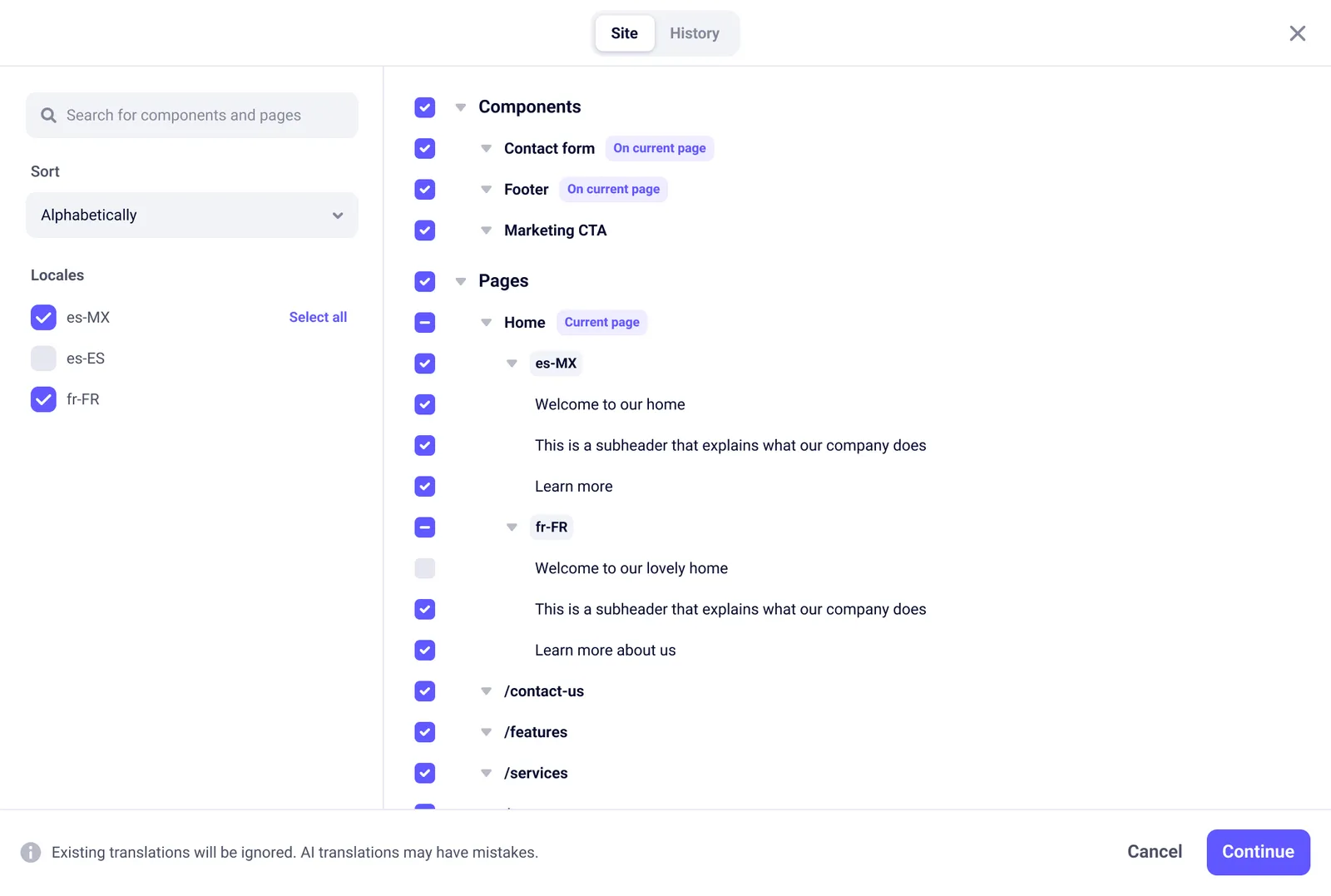
Existing translations for the selected content will be overwritten. Items not selected are left unchanged.
Click Continue when you’re ready.
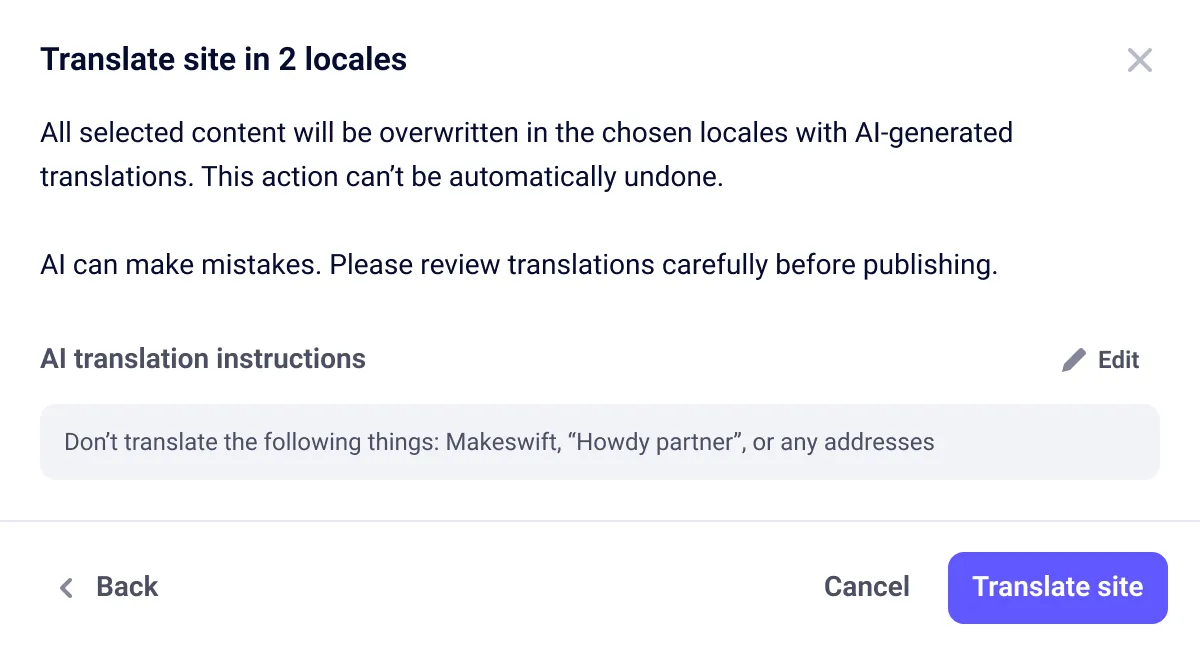
View translation history
The History tab in the translation dialog shows all past and in-progress translation jobs. Each job is listed with a timestamp. Jobs currently running show a Translating indicator.
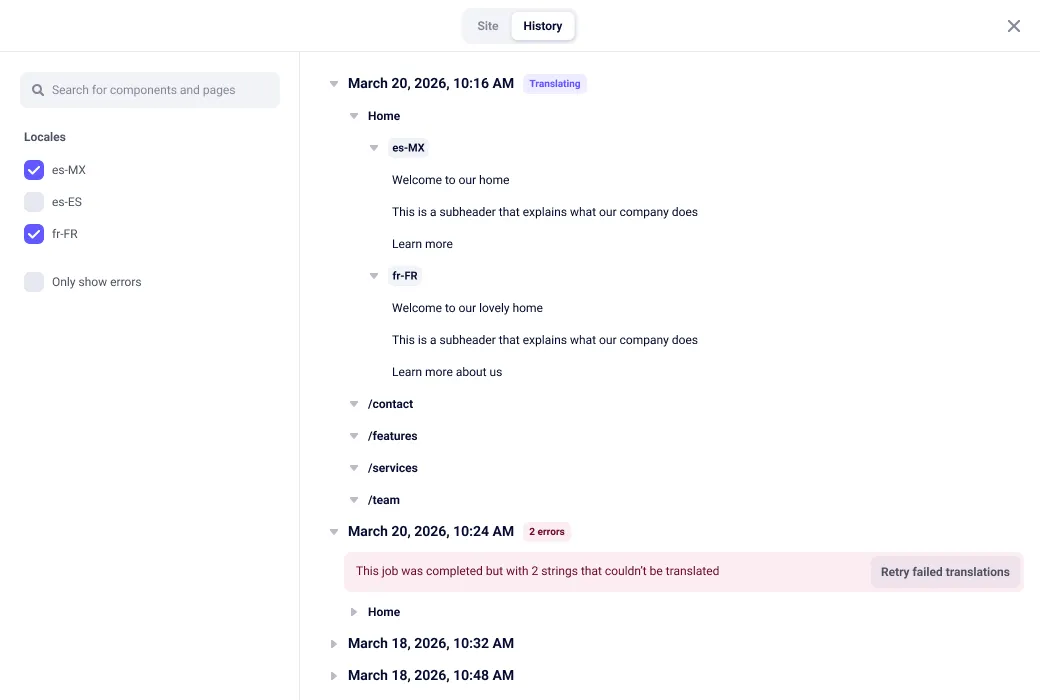
If a job completes with errors—for example, content the AI could not translate—a Retry failed translations button appears. Click it to re-run only the failed items.