For AI agents: a documentation index is available at the root level at /llms.txt and /llms-full.txt. Append /llms.txt to any URL for a page-level index, or .md for the markdown version of any page.
Sign in
DocsChangelog
DocsChangelog
  • Getting started
    • Introduction
  • The Visual Builder
    • Builder basics
    • Pages
    • Layouts
    • Elements
    • Components
    • Theming
    • Files
    • Responsive design
      • Width
      • Margin
      • Padding
      • Alignment
      • Backgrounds
      • Corners
      • Borders
      • Animations
      • Gap
      • Shadows
      • Height
      • Visibility
  • Guides
    • Previewing and sharing
    • Publishing
    • SEO
  • Settings
    • Developer docs
    • Blog
    • Support
Sign in
LogoLogo
On this page
  • Row gap
  • Column gap
  • Examples
  • Pro tips
The Visual BuilderPanels

Gap

Was this page helpful?
Previous

Animations

Next

Shadows

Built with

The gap controls allow you to easily adjust the spacing between elements within a box.

Gap is an easier way to uniformly control spacing between an elements contents. This is a quick and easy way to set and manage consistent margins between all items found within a box.
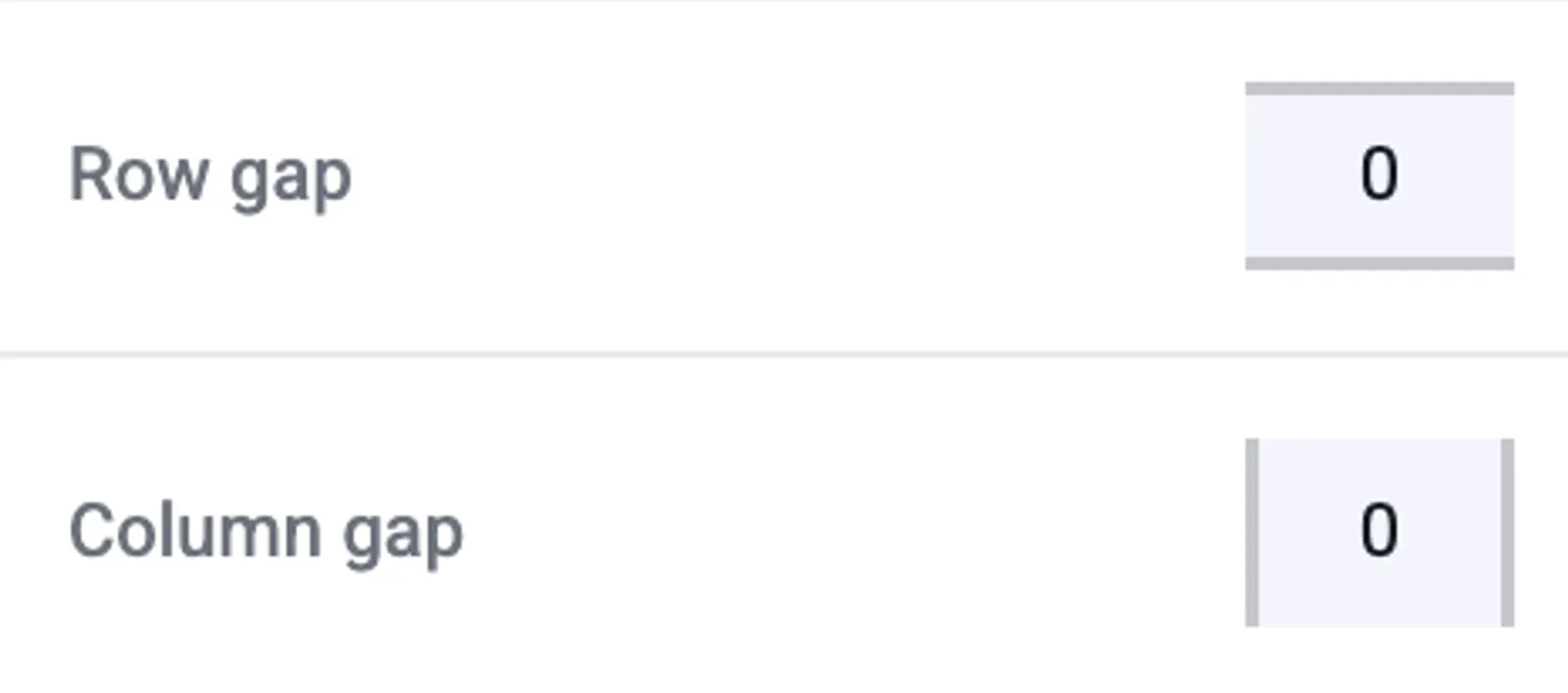
Row and Column Gap

Row gap

Row gap refers to the distance between elements stacked on top of each other.

Column gap

Column gap refers to the distance between elements placed next to each other.

Examples

The most common example of using gap is for sections containing multiple elements or cards. Simply select the smallest corresponding box that contains all the elements you’re looking to space out, and utilize your row and column gap controls.
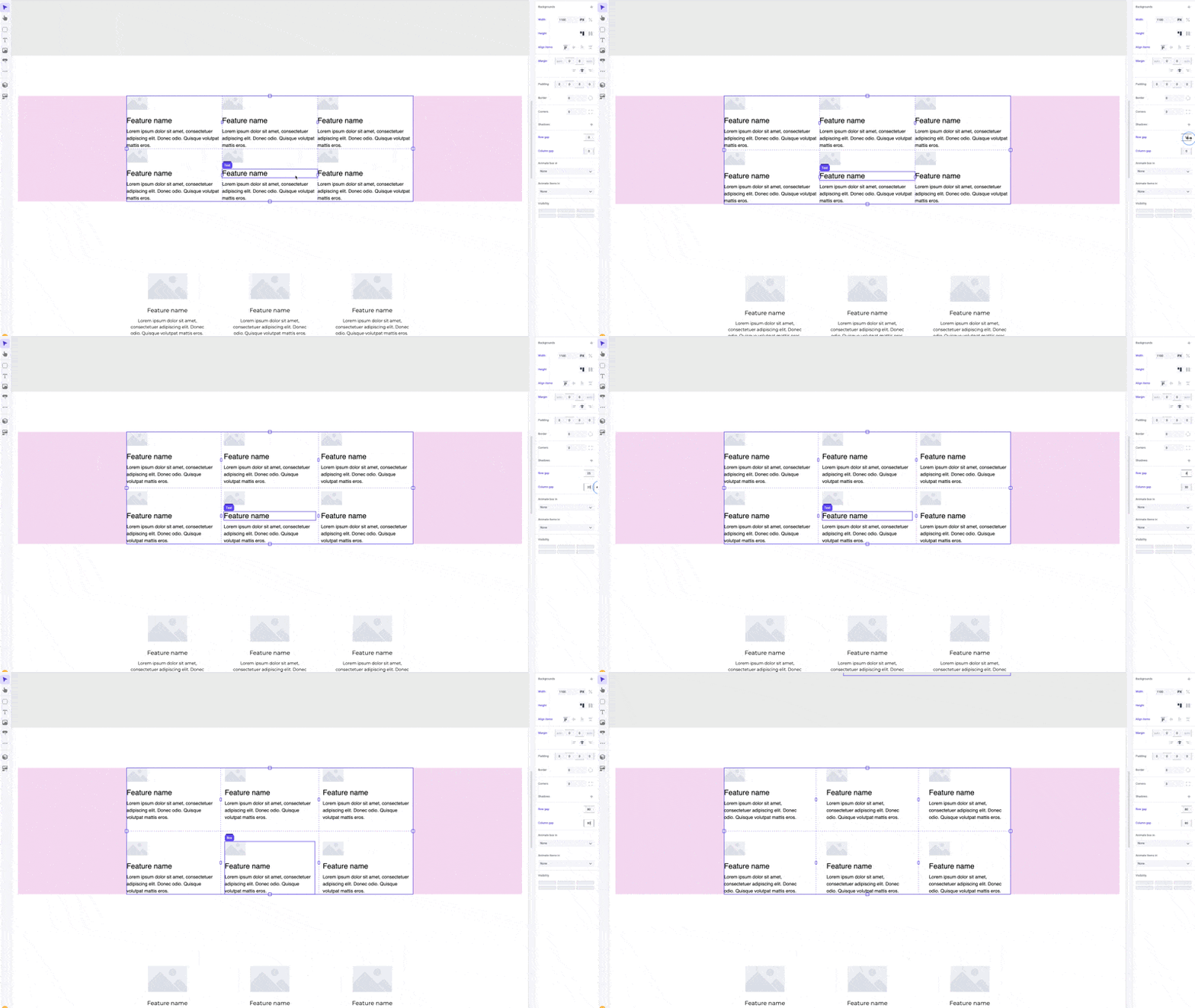
Using column and row gap

Pro tips

For a list or grid of elements with equal spacing, use the gap control instead of margin or padding. This will ensure consistent and easy to manage spacing between elements.