
Elements
Elements are instances of components you manage in the canvas. An Element can be as simple as a single button, or a complex section comprising of many panels, images, and text.
Custom element name and ID
Name an element by selecting it and changing the default name at the top of the panels sidebar. Custom names must be alphanumeric and cannot contain any spaces.
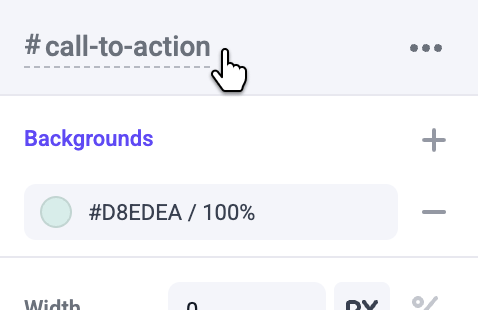
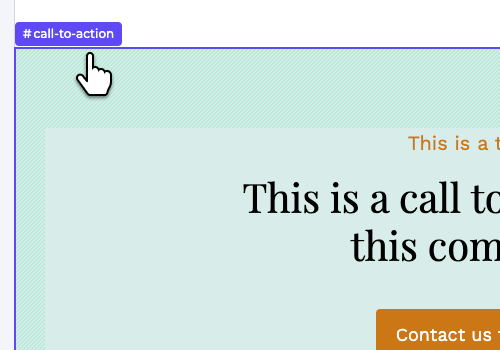
A custom name will be displayed in breadcrumbs, also making it easier to discern between nested boxes.
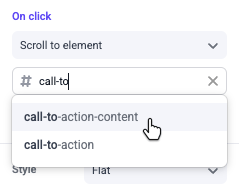
Elements with custom names can also be scrolled to with buttons, images, and text links. All elements with custom names will appear in the scroll to dropdown found in on click panels.
Custom names also serve as IDs added to the element’s HTML that can be targeted by custom CSS and JavaScript.
Element actions
Element actions are only available for elements you place in the Visual Builder. Built-in elements are placed in code and cannot be duplicated, copied, pasted, moved, or deleted from the Canvas.
Element actions can be found at the top right of the panels sidebar or by using keyboard shortcuts.
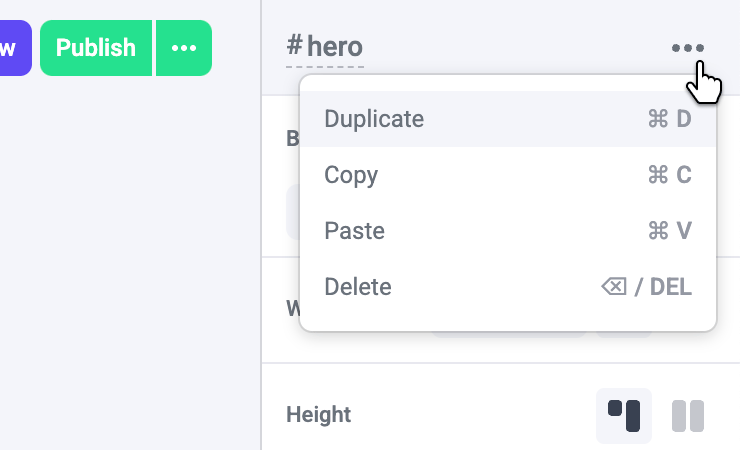
Duplicating an element or pressing ⌘ + D creates an exact copy, including nested elements, either below or next to the original.
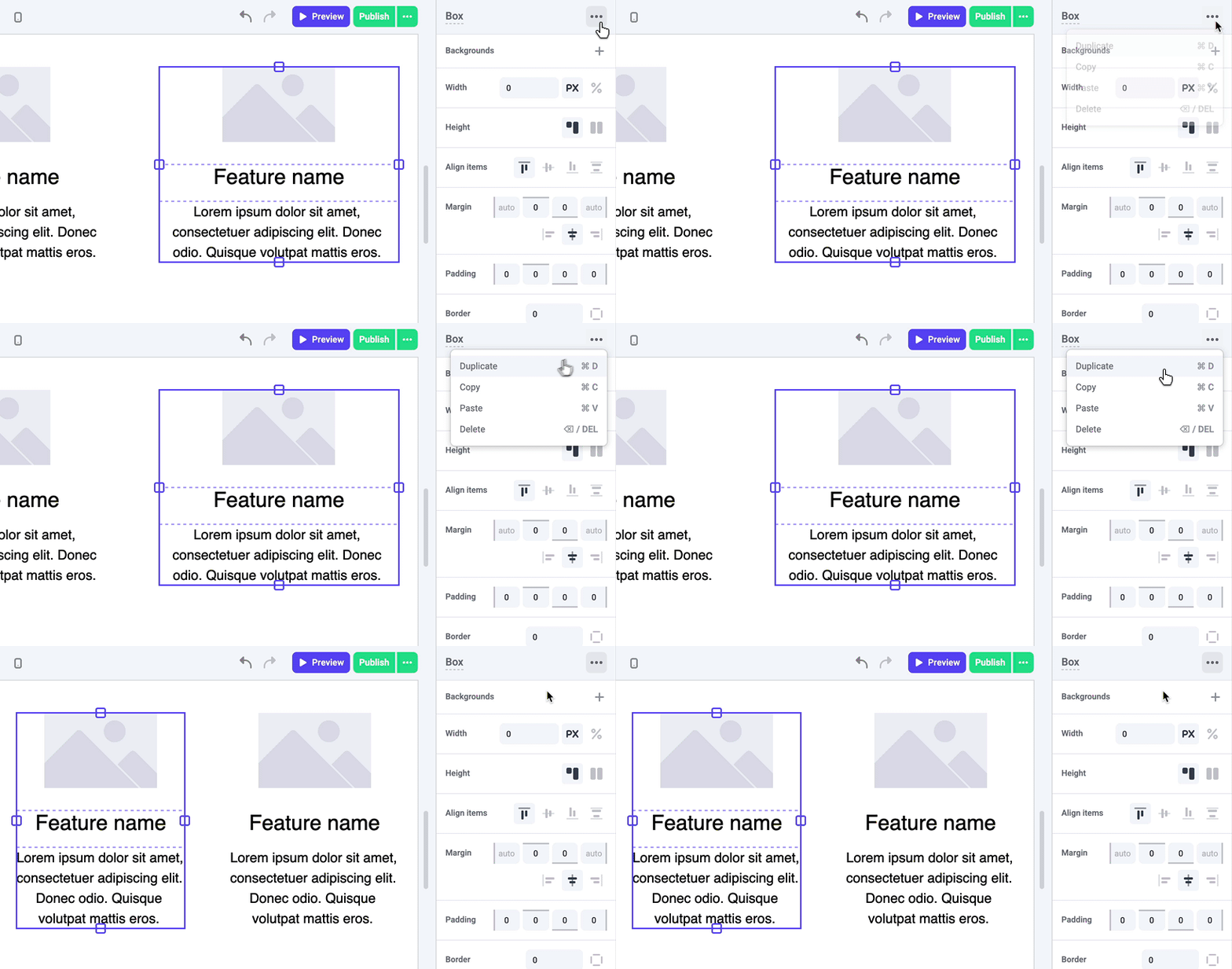
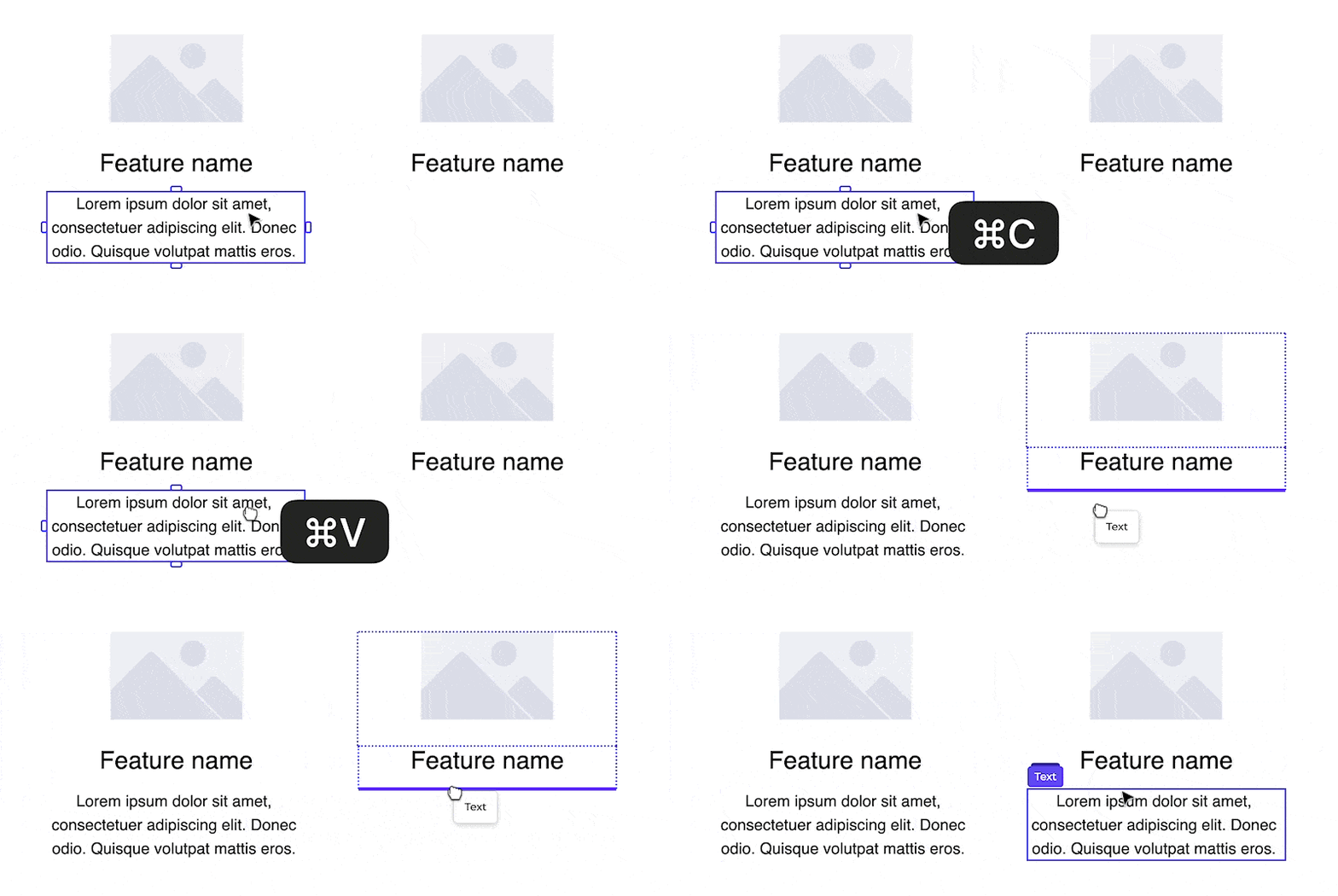
Copy an element or press ⌘ + C to save it to your clipboard. When pasting ⌘ + V, you will be able to select exactly where to place the copied element, similar to sorting.
You can delete any selected element by pressing delete or backspace.
Sort elements with arrow keys
Select an element and press an arrow key to move it within its parent Box or Slot:
- Left and right reorder an element with its direct siblings in the same row.
- Up and down move an element between rows, when it sits in a row by itself and the adjacent row above or below also holds a single element.
For example, if elements A and B share a row and elements C and D each sit in their own row below, left and right reorder A and B, while up and down reorder C and D.
Arrow keys move an element within its parent Box or Slot only. To move an element into a different parent, cut and paste it or drag it.
Built-in elements
Built-in elements are components that a developer places directly in your site’s code rather than through the Visual Builder. Common examples include site headers, footers, and other structural elements that should appear consistently across multiple pages.
Because built-in elements are defined in code, they differ from regular elements in a few ways:
- You can’t add or remove them — built-in elements are hard-coded into a page template, so they always appear in the same position. You won’t find them in the Component Toolbar.
- You can edit their properties — select a built-in element in the Canvas to configure the properties the developer has exposed, such as logos, links, or text.
- Element actions don’t apply — you can’t duplicate, copy, paste, move, or delete a built-in element from the Canvas.
Built-in elements appear in the Elements Panel alongside regular elements, so you can select and edit them the same way you would any other element on the page.
Built-in elements are set up by developers using the <MakeswiftComponent> API. For implementation details, see Built-in elements in the developer docs.