
Copy Diagnostics
Learn how to copy diagnostic information from the Makeswift Visual Builder to help with troubleshooting and support requests.
Copy diagnostics is a helpful feature in the Makeswift Visual Builder that allows you to quickly copy important technical information about your site and current session. This information can be useful if you need to share technical details with a developer, need support from the Makeswift team, or when troubleshooting issues with your site.
Using copy diagnostics
To use copy diagnostics:
- Open your site in the Makeswift Visual Builder.
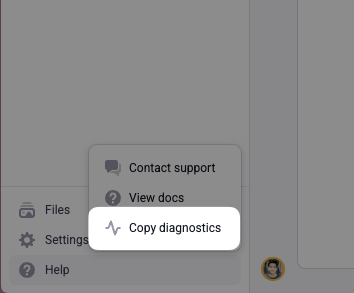
- Click Help, then Copy diagnostics in the bottom left of the Navigation Sidebar. Your site’s diagnostic information will be copied to your clipboard.
- Paste the information wherever you want to share it, such as a support email or developer chat.
Diagnostic information may contain sensitive details about your site configuration. Only share this information with trusted parties like the Makeswift support team or your development team.
Included information
When copying diagnostics, the following information is gathered:
- Workspace ID: Your current workspace identifier
- Site ID: The unique identifier for your site
- Page ID: The identifier for the current page you’re editing
- Hardcoded Path: The specific path or route of the current page
- Custom Host Status: Is the site using a custom host or Makeswift’s default hosting
- Host Origin: The origin URL of your site
- Locale: The current language/locale setting
- Runtime Version: The version of the Makeswift runtime being used
- Selected Element: Information about the currently selected element in the builder