
Docs MCP Server
The docs site exposes a Model Context Protocol (MCP) server that AI tools can search and reference. Once connected, your AI tool can answer questions like “How do I register a custom component with @makeswift/runtime?” by pulling directly from the docs.
This server lets your AI tool search and reference the Makeswift documentation. It can’t read or change your sites, pages, or workspace settings. To work with site data, use the Makeswift API instead.
Pick your agent

Terminal — Anthropic’s coding agent.

Terminal — OpenAI’s coding agent.

IDE — AI-first VS Code fork.
Desktop — general Q&A about Makeswift.
Setup your agent
Claude Code
Copy the install command
Pick the scope you want.
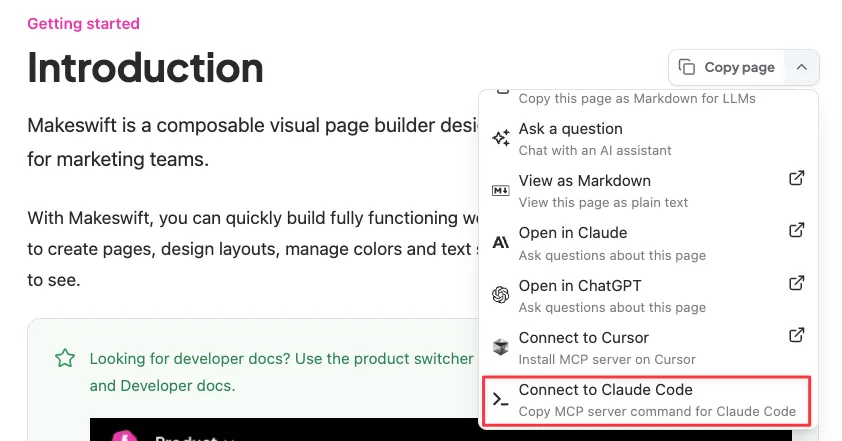
For a single project, click the Copy page dropdown in the upper right of any docs page and select Connect to Claude Code, or copy it from here:
For every project on your machine, copy this one instead:
Codex
Run this in your terminal to add the docs server:
Confirm it appears with codex mcp list, then use /mcp inside the Codex TUI to check its status.
Cursor
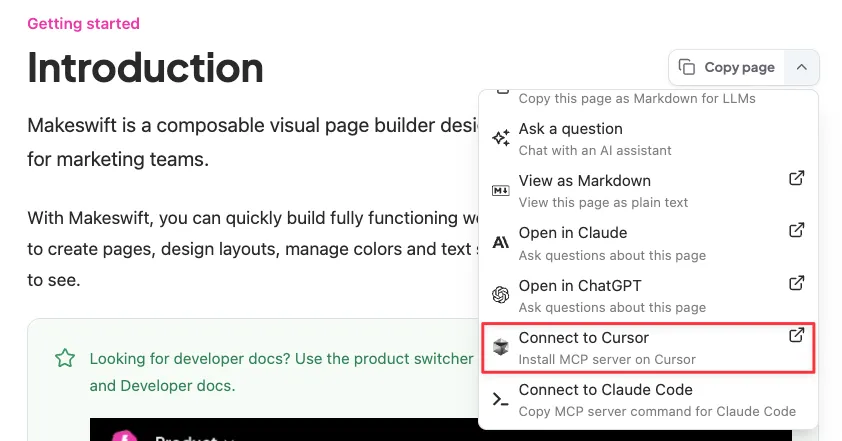
Fastest: click the Copy page dropdown in the upper right of any docs page and select Connect to Cursor. Cursor opens and asks you to confirm the new server. No file editing needed.
To set it up manually instead, add the Makeswift docs server entry to one of these files. In recent Cursor versions, the Settings → Tools & MCPs → New MCP Server button opens mcp.json for direct editing rather than a Name/URL form.
.cursor/mcp.jsonin your project root (project-scoped), or~/.cursor/mcp.jsonin your home directory (available in every project)
Save the file — Cursor picks the new server up automatically.
Claude Desktop
npx to work.Verify it’s working
Once you’ve connected, try asking your AI tool:
- “What MCP tools do you have available?” — you should see tools from the Makeswift docs server.
- “Search the Makeswift docs for controls.” — if it returns results pulled from the docs, you’re set.